

🤖 Connect your assistant
Add Sentio Connect to Claude, ChatGPT, Codex, Grok or any MCP client
Sentio Connect is a remote MCP server that speaks Streamable HTTP and OAuth 2.1. Any assistant that supports remote MCP servers with OAuth can use it. The server URL is always:
https://connect.sentio.xyz/v1/mcpYou never paste an API key. The first time your assistant connects, it sends you to the Sentio Connect consent page, where you sign in (if you aren't already) and click Allow connection.
Works in Claude on the web, Claude Desktop and the Claude mobile apps.
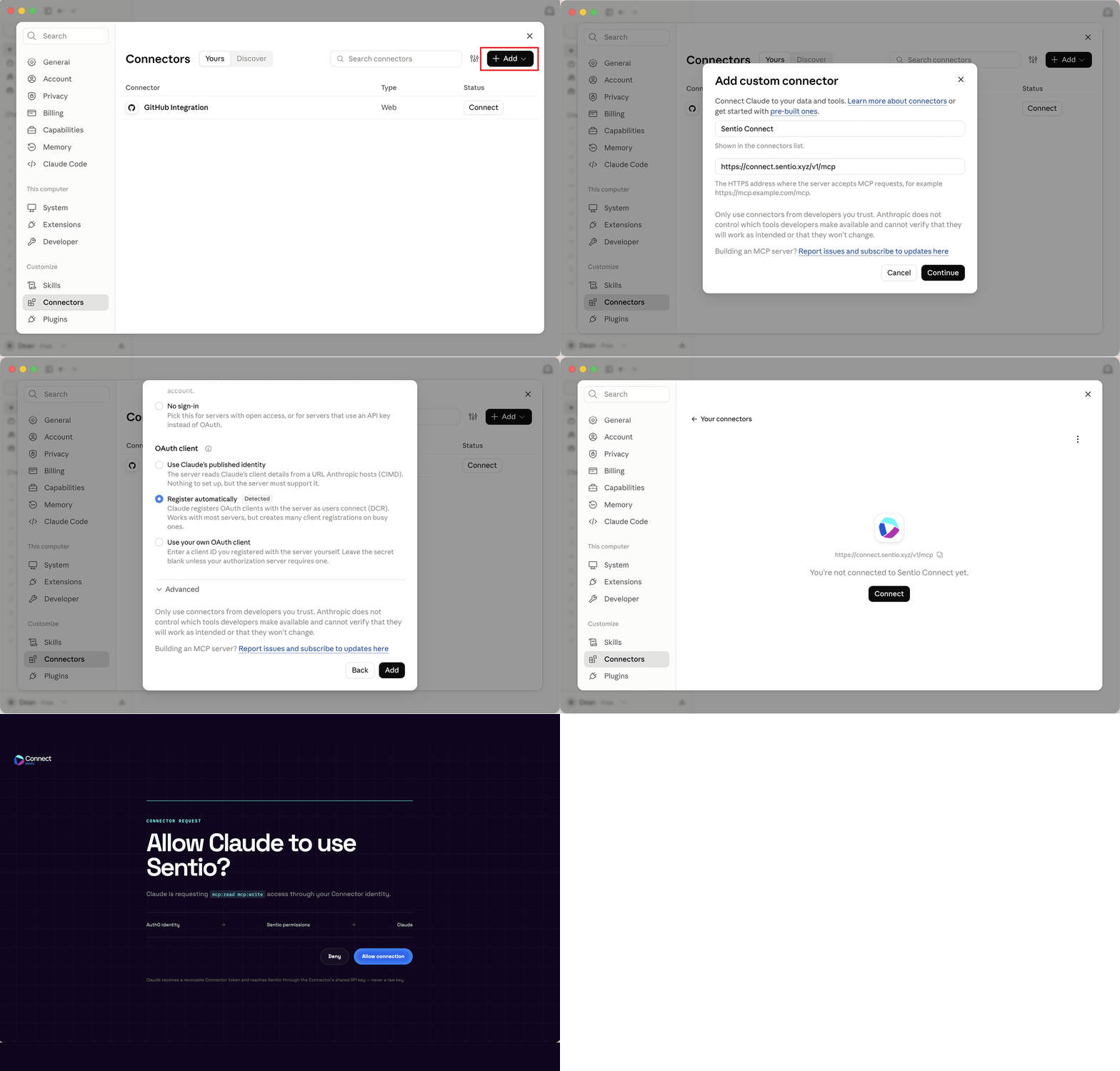
- Open Settings → Connectors, click Add and choose Add custom connector.
- Enter a name (for example
Sentio Connect) and the URLhttps://connect.sentio.xyz/v1/mcp, then click Continue. - Under OAuth client, keep Register automatically selected and click Add.
- Click Connect. A browser window opens the Sentio Connect consent page — click Allow connection.
- In a conversation, make sure the Sentio connector is enabled in the tools menu, then ask a question about your wallets.
Claude renders token balances and DeFi positions as interactive cards. Click a row in a card to chart that holding's 24h or 7d history.
Read-only vs. read-write connections
A connection is granted one or both of these scopes:
| Scope | Allows |
|---|---|
mcp:read | All read tools: balances, prices, portfolio value, tracked addresses, DeFi positions and history |
mcp:write | Also add_wallet_address and remove_wallet_address, which change only your own tracked-address list |
Most assistants request both. If a client asks only for mcp:read, the write tools are hidden from its tool list and rejected if called.
Disconnecting
To revoke access, remove the connector in your assistant's settings. Access tokens expire after one hour and refresh tokens after 30 days, so an assistant that is no longer used loses access on its own.